

Why raw CPU speed still matters in everyday phone use
A modern phone can open apps, edit video, run AI features and play games, yet many users still judge speed by a single benchmark number. That number hides how processors behave in real tasks. Raw CPU speed influences loading times, UI smoothness, multitasking, and how long heavy jobs keep running before throttling. We test those moments people notice every day.
This article explains what “raw speed” means for owners, why synthetic scores miss context, and which real-use tasks reveal differences. It describes repeatable tests for app responsiveness, content creation, gaming, and sustained performance under heat. Use these findings to choose a phone that feels fast for your habits, not just for a chart.
We’ll show clear examples and practical buying advice so you can pick confidently today, right now.



Defining real-world speed: which tasks reveal CPU performance
What “real-world” tests are
Real-world tests measure what you notice day-to-day, not a synthetic score. Think of metrics that map to user pain points: how long an app takes to appear, whether scrolling stays buttery when switching apps, or whether a long video export finishes before you leave for work. These are the moments where CPU choices translate into time saved (or wasted).
Tasks that expose CPU differences
Everyday tasks that tend to reveal CPU impact include:
Why some tasks are CPU-bound (and how to isolate that)
Not every slow moment is the CPU’s fault: storage speed, available RAM, GPU work, and network latency often dominate. To isolate CPU impact when testing:
Quick tip: export the same 4K clip on two phones while in airplane mode and with screen off; export time differences are one of the clearest, practical indicators of raw CPU capability.
Designing reliable real-use tests: methodology and repeatability
Control the environment first
Treat each phone like a lab sample. Fix screen brightness, disable adaptive brightness, set a consistent battery level (ideally 50–100% or keep it plugged in), and turn on airplane mode to remove network variability. Record ambient temperature and let the device cool between heavy runs to avoid thermal carryover. Small changes — a notification download or a warm back pocket — can shift times by 10–30%.
Use scripted, repeatable interactions
Automate everything you can. On Android use ADB + UIAutomator or Espresso; on iOS use XCUITest or Shortcuts. For simple timing, a single ADB shell command that launches an app and dumps timestamps is more repeatable than a stopwatch. Complement automation with screen recordings and system traces (Perfetto, systrace) for later verification.
Logging and timing techniques
Prefer machine timestamps over manual stopwatches. Capture CPU, temperature, and power logs during runs. Store raw logs so you can replay and inspect anomalies. If you must use manual timing, record video and timestamp frame-by-frame.
Sample size and statistics
Run tests multiple times — aim for 7–10 clean runs. Use the median to report typical behavior (it resists outliers); report mean and standard deviation too to show variance. If comparing phones, a simple paired t-test or nonparametric test can confirm significance when differences are small.
Common pitfalls and resets
Beware background updates, adaptive CPU governors, OS power modes, and aggressive app prefetching. Between runs: reboot, kill background services, clear app cache if needed, and wait for thermals to stabilize. Anecdote: a device once showed 40% slower exports until its background gallery indexing finished — always check for hidden tasks.
App responsiveness: launch times, switching, and UI smoothness
When a phone “feels” fast you usually don’t notice CPU clock rates — you notice app snappiness. The tests below target perceived responsiveness: how long until you can interact, how fluid scrolls feel, and whether switching apps brings you back to work or a spinner.
Cold vs. warm launches
Cold launch = app not resident; warm launch = process cached. Measure both:
Use platform commands (ADB am start -W, Xcode Instruments) to capture launch totals and pair them with a screen recording to verify the first interactive frame.
Time to first frame and frame traces
Frame timing matters more than raw time. At 60 Hz you have 16.7 ms per frame (8.3 ms at 120 Hz). Capture a frame-rate trace (Perfetto/systrace or iOS Core Animation) and look for:
A burst of three 16.7 ms misses during a scroll is obvious; a single 20–30 ms hiccup may still feel janky.
App switching and memory policies
Test switching with multiple apps open. Android may kill background processes aggressively; iOS tends to snapshot and restore the UI. Measure resume latency and whether an app restores state or hard-reloads content.
What to record and why
Small gains matter: shaving 50–100 ms off a warm launch or eliminating a recurring jank spike dramatically improves perceived smoothness — an important factor when choosing a daily driver.
Content creation and compute-heavy tasks: editing, encoding, and AI features
Real work on phones—stacked layers in a photo, a minute of 4K color-graded footage, or on-device transcription—forces CPUs to run hot and long. Test these workflows the way creators use them: same source files, identical export/preset settings, and a restart-to-clear-cache before each run.
Test setup and what to record
Record:
How acceleration and parallelism affect results
Modern phones often offload heavy math to NPUs/DSPs (Apple Neural Engine, Qualcomm Hexagon, MediaTek APU) or to dedicated video encoders. When an app uses those blocks, CPU time plummets and exports finish faster with lower temps. But many filters/plugins still run on CPU threads—single-threaded tasks or I/O-heavy brushes expose raw CPU single-core speed.
Practical tips and what to watch for
Next, we’ll examine how those sustained runs map to real thermal limits and the throttling patterns you’ll actually feel.
Gaming and GPU-bound scenarios: when the CPU still matters
When the GPU isn’t the whole story
Modern mobile games are GPU-heavy, but the CPU coordinates everything else—load ordering, AI, physics, and network/voice stacks. In an open-world title like Genshin Impact or a multiplayer shooter, a slow CPU can mean long level loads, stuttering during streaming, and uneven frame pacing even if peak FPS looks high.
What to measure and how

Why CPU architecture and system I/O matter
Single-thread speed, cache sizes, and memory/subsystem latency affect draw-call submission, AI ticks and physics resolution. Fast storage (UFS 3.1/4.0) speeds asset streaming; a SoC with a strong “prime” core (Apple A-series or a top Snapdragon/Dimensity prime) will generally keep GPU-fed and reduce hitching.
Practical tips for gamers
Thermals, throttling, and sustained performance over time
Measuring temperature rise and finding throttle points
Start by logging skin and SoC temperatures with apps (Device Info HW, Treble Info) and, where possible, an IR thermometer or thermal camera for hotspots. Simultaneously record CPU clock speeds and core utilization via ADB or manufacturer tools. Throttle points show up as a sudden step-down in clock speed or a plateau in temperature while performance drops.
How to quantify degradation
Run a looped workload and capture metrics at fixed intervals:
Track percentage change versus the first run (e.g., 0–10 min = baseline; 30 min = X% slower). A common heuristic: <10% falloff = excellent sustained performance; 10–30% = noticeable; >30% = significant throttling.

Simulating real-life sustained usage
Use extended scenarios rather than synthetic loops:
Capture timelines (metric vs time) and annotate when UI stutters, exports slow, or framepacing worsens.
Design trade-offs and what they mean for you
Manufacturers balance cooling hardware (vapor chambers, graphite, heat pipes), peak clock profiles, and power limits. Phones like gaming-focused ROG models prioritize sustained clocks with bulky cooling; compact flagships may favor short bursts and aggressive throttling to save heat and battery. The result: two phones with similar peak scores can feel very different after 10, 30, or 60 minutes of heavy use.
Next, we’ll turn those timelines into practical buying guidance and explain how to pick a phone that stays fast in the scenarios you actually use.
Interpreting test results and choosing a phone for real use
Start with what you actually do
Begin by listing the handful of tasks that dominate your day: constant app switching, long gaming sessions, heavy photo/video edits, or lots of multitasking. That list is your filter—everything else is noise. For someone who shoots and edits 4K clips on the phone, sustained throughput matters. For a social-scroller or power user who jumps between chat, browser, and camera, short-burst responsiveness is king.
Short-burst peaks vs sustained throughput
Treat peak benchmark scores as indicators of instantaneous snappiness; sustained scores (multi-run loops, throttling charts) predict behavior under long workloads. If a phone loses 25–40% performance after 20 minutes of gaming, expect slower exports and occasional frame drops even if the first-run score is excellent.
System context matters
CPU numbers aren’t standalone—RAM size and speed, storage throughput (UFS vs eMMC), and software optimizations/OS memory management shape perceived speed. A well-tuned midrange SoC with fast storage and 12GB RAM can feel faster than a flagship with poor thermal control.

Quick decision rules of thumb
How to use published data and hands-on checks
Use reviews that include both peak and sustained tests, storage benchmarks, and thermal graphs. In-store, try rapid app switching, camera-to-gallery flip, and a 10–20 minute gameplay demo. Those quick checks map directly to the test numbers and tell you how a phone will feel day to day.
Next, we’ll put raw speed into perspective and help balance it against other buying priorities.
Putting raw speed into perspective
Real-world tests reveal meaningful differences synthetic benchmarks miss, showing how app responsiveness, sustained workloads, thermals and GPU interplay shape everyday performance. Careful, repeatable methodology — consistent workloads, controlled conditions and multiple runs — is essential for trustworthy comparisons.
Match a phone’s strengths to your workload: single‑thread responsiveness for UI snappiness, multi‑core throughput for editing and encoding, and thermal headroom for long gaming or AI sessions. Use the tests outlined here or prioritize the specific performance attributes that matter to you. Real measurements help you buy a phone that feels faster in real life now.






The bit about the XCLUMA USB Charger Doctor made me laugh — who knew voltage logs could be thrilling? 😂
Seriously tho, I used that little meter to check a weird fast-charge cable and it saved me a headache.
Also, the mention of the ASUS Vivobook 16X Creator with RTX 3050 was a good reminder: sometimes offloading heavy renders to a laptop is way faster than stressing your phone.
Would love practical tips on when to offload vs when to keep working on-device.
Great read and the sarcasm in the intro was a nice touch.
Pro tip: if you’re editing footage shot on the phone, copy files to the laptop SSD before rendering. Phones choke on sustained I/O more than the actual CPU sometimes.
Totally agree — the meter is small but useful for sanity checks. For offloading: if your task is long-form encoding or heavy GPU rendering, the Vivobook/RTX 3050 will almost always finish faster and cooler than even a top-tier phone. On-device is great for quick edits and AI features that are optimized for the phone.
Love the deep dive into sustained performance — finally an article that cares about what happens after the first benchmark.
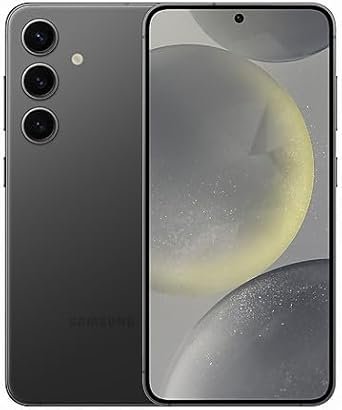
The Galaxy S24 (Snapdragon 8 Gen 3) still shines for day-to-day, but your thermal graphs made me pause.
I actually slapped a SpinBot IceDot Mag v1 on my phone during a long 4K export and saw temps drop a bit — not magic, but noticeable.
Would love a follow-up that pairs the cooler tests with battery drain numbers (and maybe the charger doctor readings?)
Great work overall, and please keep the repeatability/methodology sections — those are gold 👍
We did test the IceDot on the NARZO 80 Pro as well — it reduced thermal throttling in a 30-minute encode by a few percent, but the underlying SOC efficiency still mattered more. We’ll add a short comparison table in the next update.
Nice! I was skeptical about those magnetic coolers but your real-world take matches mine — they help for sustained loads but don’t turn a midrange phone into a flagship😂
Curious if you tried the cooler on the realme NARZO 80 Pro 5G (Dimensity 7400). I feel like midrange dimensity chips can benefit more from surface cooling during long video edits.
Thanks, Olivia — glad that part resonated. We did record battery temps with and without the IceDot, and the charger readings (XCLUMA USB Charger Doctor) showed only slight charging variability with the cooler attached. I’ll pull those charts into a follow-up post.
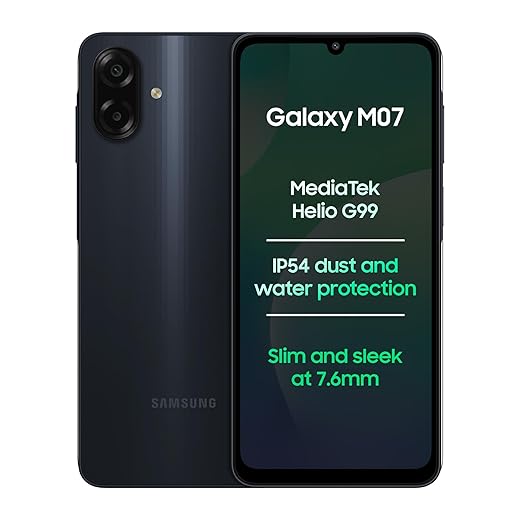
Good article. Short takeaway for me: if you’re on a budget (looking at you, Galaxy M07 with Helio G99 Performance), don’t expect flagship-level sustained speed. App switching is fine for casual use tho 😅
Appreciate the methodological rigor here — repeatability is the secret sauce that most sites skip.
A few observations/questions:
1) Did you control for background services and network activity during app responsiveness tests? That can skew launch times a lot.
2) The section on gaming/GPU-bound scenarios was spot on: CPU still matters for draw calls, physics, and frame pacing even if FPS is GPU-limited.
3) Comparing the realme NARZO 80 Pro 5G (Dimensity 7400) to the S24 is useful for shoppers, but consider normalizing for thermal envelope — not all phones can sustain chip clocks under constant load.
4) Would love to see a standardized repeat test script you used (CPU/GPU load patterns + timing) so other reviewers can replicate.
Regarding the thermal envelope: some OEMs are conservative with sustained clocks to save battery/temps, so a high peak benchmark doesn’t mean much in 30+ minute sessions.
Thanks for the feedback — we’ll append the test scripts, software versions, and a short verification clip. The Redmi A4 5G is on our next batch for large-display UI responsiveness tests.
Would love to see results for the Redmi A4 5G (that 6.88″ 120Hz screen is tempting). Wondering how much the big display taxes the GPU/SoC in UI responsiveness tests.
Great questions, Daniel. We did throttle background processes (airplane mode, locked background tasks) and ran multiple iterations to average out network variance. The test scripts are in a public gist — I’ll add the link to the article so others can reproduce the runs.
If you put the test rigs and software names in the article (and maybe a short video of the runs), that would make it way easier to verify and trust the results. Method transparency = credibility.
On point #2 — frame pacing differences are huge. Two phones at similar avg FPS can feel totally different if microstutters exist. Be sure to look at percentiles, not just averages.